地理围栏
文档摘要
地理围栏 本课概览图 概览图由 Nitya Narasimhan 绘制。点击图片查看大图。 此视频概述了地理围栏及其在 Azure Maps 中的使用方法,这些主题将在本课中进行探讨: 来自 Microsoft 开发者 IoT 节目的 Azure Maps 地理围栏 点击上面的图片观看视频 课前测验 课前测验 引言 在过去的三节课中,您使用物联网技术跟踪将农产品从农场运送到加工中心的卡车的位置。您捕获了GPS数据,将其发送到云端存储,并在地图上进行了可视化。提高供应链效率的下一步是,在卡车即将到达加工中心时收到通知,以便卸货所需的人员可以准备好叉车和其他设备。这样他们可以快速卸货,您也不需要支付卡车和司机等待的时间费用。
地理围栏

概览图由 Nitya Narasimhan 绘制。点击图片查看大图。
此视频概述了地理围栏及其在 Azure Maps 中的使用方法,这些主题将在本课中进行探讨:
点击上面的图片观看视频
课前测验
引言
在过去的三节课中,您使用物联网技术跟踪将农产品从农场运送到加工中心的卡车的位置。您捕获了GPS数据,将其发送到云端存储,并在地图上进行了可视化。提高供应链效率的下一步是,在卡车即将到达加工中心时收到通知,以便卸货所需的人员可以准备好叉车和其他设备。这样他们可以快速卸货,您也不需要支付卡车和司机等待的时间费用。
在本课中,您将学习有关地理围栏的知识——定义地理空间区域(例如距离加工中心2公里范围内的区域),以及如何测试GPS坐标是否在地理围栏内或外,从而判断您的GPS传感器是否已到达或离开某个区域。
本课我们将涵盖以下内容:
这是本项目的最后一课,所以在完成本课和作业后,请不要忘记清理您的云服务。您需要这些服务来完成作业,因此请先完成作业。
如需清理指南,请参阅 项目清理指南。
什么是地理围栏
地理围栏是为现实世界地理区域定义的一个虚拟边界。地理围栏可以是圆圈,由一个点和半径定义(例如围绕建筑物的100米宽的圆圈),也可以是一个多边形覆盖一个区域,如学校区域、城市边界或大学或办公园区。
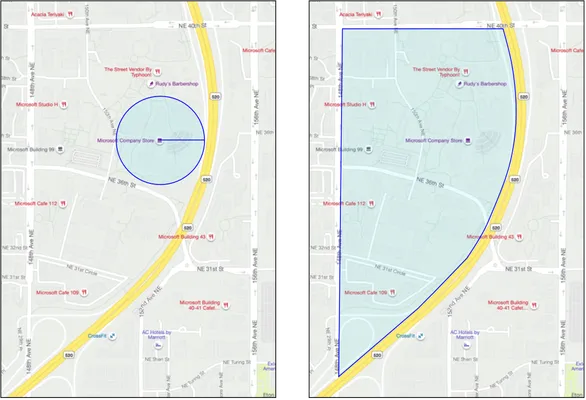
您可能已经不知不觉地使用了地理围栏。如果您使用iOS提醒应用或Google Keep基于位置设置了提醒,那么您已经使用了地理围栏。这些应用会根据给定的位置设置一个地理围栏,并在手机进入围栏时向您发出警报。
有许多原因需要知道车辆是否在地理围栏内或外:
- 准备卸货——当车辆到达现场时收到通知,可以让工作人员准备卸货,减少车辆等待时间。这可以让司机一天内完成更多送货,同时减少等待时间。
- 税收合规——例如新西兰对柴油车辆的公路税是基于在公共道路上行驶时的车辆重量。使用地理围栏可以追踪在公共道路上行驶的距离,而不是在农田或伐木区等私人道路上行驶的距离。
- 监控盗窃——如果车辆只能停留在某区域(如农场),而它离开了地理围栏,则可能被盗。
- 位置合规——工作现场、农场或工厂的某些部分可能禁止某些车辆进入,如禁止装载化肥和农药的车辆进入种植有机作物的田地。如果车辆进入了地理围栏,则表示车辆不在合规范围内,驾驶员应得到通知。
✅ 您还能想到其他使用地理围栏的情况吗?
Azure Maps 是您在上一课中用于可视化GPS数据的服务,允许您定义地理围栏,然后测试一个点是否在围栏内或外。
定义一个地理围栏
地理围栏使用GeoJSON定义,与上一课中添加到地图上的点相同。在这种情况下,GeoJSON不是包含多个值的数组,而是包含一个多边形的数组。
{ "type": "FeatureCollection", "features": [ { "type": "Feature", "geometry": { "type": "Polygon", "coordinates": [ [ [ -122.13393688201903, 47.63829579223815 ], [ -122.13389128446579, 47.63782047131512 ], [ -122.13240802288054, 47.63783312249837 ], [ -122.13238388299942, 47.63829037035086 ], [ -122.13393688201903, 47.63829579223815 ] ] ] }, "properties": { "geometryId": "1" } } ] }
多边形上的每个点都定义为一个经度和纬度的数组,并且这些点在一个数组中,该数组被设置为coordinates。在上一课中的点中,coordinates是一个包含两个值(纬度和经度)的数组;而在多边形中,它是一个包含两个值(经度和纬度)的数组的数组。
记住,GeoJSON 使用
经度, 纬度的顺序。
多边形的坐标数组总是比多边形上的点数多一个元素,最后一个元素与第一个元素相同,以封闭多边形。例如,对于一个矩形有五个点。
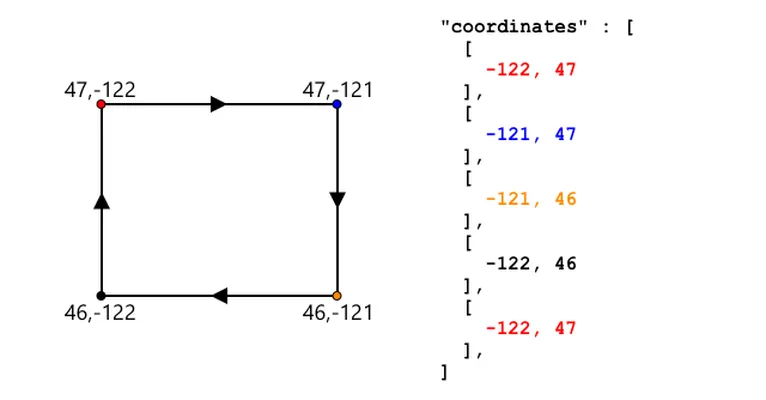
在上面的图像中,有一个矩形。多边形的坐标从左上角的47,-122开始,向右移动到47,-121,向下移动到46,-121,再向右移动到46, -122,最后回到起点47, -122。这使得多边形有五个点——左上角、右上角、右下角、左下角,最后回到左上角以封闭它。
✅ 尝试围绕您的家或学校创建一个GeoJSON多边形。您可以使用像 GeoJSON.io 这样的工具。
任务 - 定义一个地理围栏
要在Azure Maps中使用地理围栏,首先必须将其上传到您的Azure Maps帐户。一旦上传成功,您将获得一个唯一ID,可以用来测试一个点是否在围栏内。要将地理围栏上传到Azure Maps,您需要使用地图Web API。您可以使用一个名为curl的工具调用Azure Maps Web API。
curl 是一个命令行工具,用于向Web端点发出请求。
-
如果您使用的是Linux、macOS或较新的Windows 10版本,可能已经安装了curl。运行以下命令来检查:
curl --version如果没有看到curl的版本信息,则需要从curl下载页面安装。
如果您熟悉Postman,也可以选择使用它代替。
-
创建一个包含多边形的GeoJSON文件。您将使用GPS传感器测试它,所以创建一个围绕您当前位置的多边形。您可以手动编辑上面给出的GeoJSON示例,或者使用像 GeoJSON.io 这样的工具。
GeoJSON需要包含一个
FeatureCollection,其中Featurewith ageometry的类型为Polygon。您必须还要添加一个
propertieselement at the same level as thegeometryelement, and this has to contain ageometryId:"properties": { "geometryId": "1" }如果使用 GeoJSON.io,则需要手动将此条目添加到空的
propertieselement, either after downloading the JSON file, or in the JSON editor in the app.This
geometryIdmust be unique in this file. You can upload multiple geofences as multipleFeatures数组中的FeatureCollection中,只要每个条目都有不同的geometryId. Polygons can have the samegeometryIdif they are uploaded from a different file at a different time. -
Save this file as
geofence.json,并导航到保存文件的终端或控制台。 -
运行以下curl命令以创建地理围栏:
curl --request POST 'https://atlas.microsoft.com/mapData/upload?api-version=1.0&dataFormat=geojson&subscription-key=<subscription_key>' \ --header 'Content-Type: application/json' \ --include \ --data @geofence.json替换
<subscription_key>in the URL with the API key for your Azure Maps account.The URL is used to upload map data via the
https://atlas.microsoft.com/mapData/uploadAPI. The call includes anapi-versionparameter to specify which Azure Maps API to use, this is to allow the API to change over time but maintain backwards compatibility. The data format that is uploaded is set togeojson.This will run the POST request to the upload API and return a list of response headers which includes a header called
locationcontent-type: application/json location: https://us.atlas.microsoft.com/mapData/operations/1560ced6-3a80-46f2-84b2-5b1531820eab?api-version=1.0 x-ms-azuremaps-region: West US 2 x-content-type-options: nosniff strict-transport-security: max-age=31536000; includeSubDomains x-cache: CONFIG_NOCACHE date: Sat, 22 May 2021 21:34:57 GMT content-length: 0当调用Web端点时,可以通过添加
?followed by key value pairs askey=value, separating the key value pairs by a&. -
Azure Maps doesn't process this immediately, so you will need to check to see if the upload request has finished by using the URL given in the
locationheader. Make a GET request to this location to see the status. You will need to add your subscription key to the end of thelocationURL by adding&subscription-key=<subscription_key>to the end, replacing<subscription_key>来传递参数,其中包含您的Azure Maps帐户的API密钥。运行以下命令:curl --request GET '<location>&subscription-key=<subscription_key>'替换
<location>with the value of thelocationheader, and<subscription_key>with the API key for your Azure Maps account. -
Check the value of
statusin the response. If it is notSucceeded, then wait a minute and try again. -
Once the status comes back as
Succeeded, look at theresourceLocationfrom the response. This contains details on the unique ID (known as a UDID) for the GeoJSON object. The UDID is the value aftermetadata/, and not including theapi-version. For example, if theresourceLocation的值为:{ "resourceLocation": "https://us.atlas.microsoft.com/mapData/metadata/7c3776eb-da87-4c52-ae83-caadf980323a?api-version=1.0" }那么UDID将是
7c3776eb-da87-4c52-ae83-caadf980323a.Keep a copy of this UDID as you will need it to test the geofence.
Test points against a geofence
Once the polygon has been uploaded to Azure Maps, you can test a point to see if it is inside or outside the geofence. You do this by making a web API request, passing in the UDID of the geofence, and the latitude and longitude of the point to test.
When you make this request, you can also pass a value called the searchBuffer. This tells the Maps API how accurate to be when returning results. The reason for this is GPS is not perfectly accurate, and sometimes locations can be out by meters if not more. The default for the search buffer is 50m, but you can set values from 0m to 500m.
When results are returned from the API call, one of the parts of the result is a distance 表示距离边缘的测量值,正数表示点在围栏外,负数表示在围栏内。如果这个距离小于搜索缓冲区,实际距离将以米为单位返回,否则值为999或-999。999表示点在围栏外超过搜索缓冲区,-999表示点在围栏内超过搜索缓冲区。
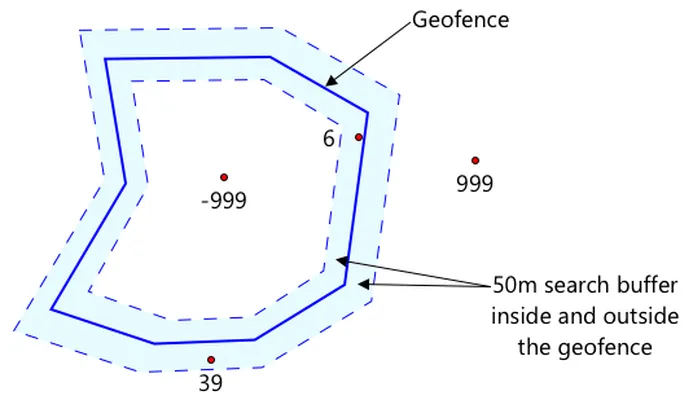
在上面的图像中,地理围栏有一个50米的搜索缓冲区。
- 围栏中心的一个点,远离搜索缓冲区,距离为 -999
- 一个远离搜索缓冲区的点,距离为 999
- 一个在围栏内且在搜索缓冲区内的点,距离为6米,距离为 6米
- 一个在围栏外但在搜索缓冲区内的点,距离为39米,距离为 39米
了解点到围栏边缘的距离非常重要,并结合其他信息(如其他GPS读数、速度和道路数据)来基于车辆位置做出决策。
例如,想象一下GPS读数显示一辆车正在沿着一条最终靠近地理围栏的道路行驶。如果单个GPS读数不准确,将车辆放置在围栏内,即使没有车辆通道,那么它可以被忽略。
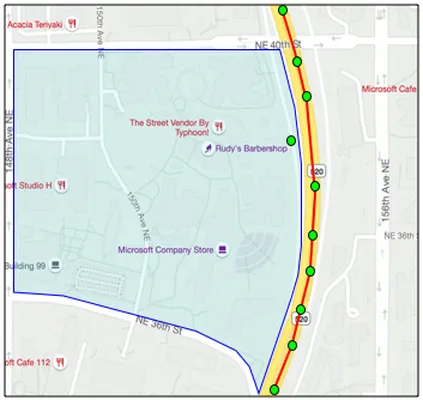
在上面的图像中,有一个覆盖微软校园一部分的地理围栏。红色线显示卡车沿着520号公路行驶,圆圈表示GPS读数。大多数读数都是准确的,并沿520号公路分布,只有一个在校园内的读数。该读数不可能是正确的——没有道路能让卡车突然从520号公路转向校园,然后再返回520号公路。检查此围栏的代码需要考虑之前的读数才能对围栏测试的结果采取行动。
✅ 您还需要哪些额外数据来判断一个GPS读数是否可以被认为是正确的?
任务 - 测试点是否在地理围栏内
-
首先构建用于Web API查询的URL。格式如下:
https://atlas.microsoft.com/spatial/geofence/json?api-version=1.0&deviceId=gps-sensor&subscription-key=<subscription-key>&udid=<UDID>&lat=<lat>&lon=<lon>替换
<subscription_key>with the API key for your Azure Maps account.Replace
<UDID>with the UDID of the geofence from the previous task.Replace
<lat>and<lon>with the latitude and longitude that you want to test.This URL uses the
https://atlas.microsoft.com/spatial/geofence/jsonAPI to query a geofence defined using GeoJSON. It targets the1.0api version. ThedeviceIdparameter is required and should be the name of the device the latitude and longitude comes from.The default search buffer is 50m, and you can change this by passing an additional parameter of
searchBuffer=<distance>, setting<distance>为搜索缓冲区距离(以米为单位),范围从0到500。 -
使用curl发出GET请求到此URL:
curl --request GET '<URL>'如果收到
BadRequest响应码,并且错误为:Invalid GeoJSON: All feature properties should contain a geometryId, which is used for identifying the geofence.则您的GeoJSON缺少
propertiessection with thegeometryId. You will need to fix up your GeoJSON, then repeat the steps above to re-upload and get a new UDID. -
The response will contain a list of
geometries, one for each polygon defined in the GeoJSON used to create the geofence. Each geometry has 3 fields of interest,distance,nearestLatandnearestLon{ "geometries": [ { "deviceId": "gps-sensor", "udId": "7c3776eb-da87-4c52-ae83-caadf980323a", "geometryId": "1", "distance": 999.0, "nearestLat": 47.645875, "nearestLon": -122.142713 } ], "expiredGeofenceGeometryId": [], "invalidPeriodGeofenceGeometryId": [] }-
nearestLatandnearestLonare the latitude and longitude of a point on the edge of the geofence that is closest to the location being tested. -
distanceis the distance from the location being tested to the closest point on the edge of the geofence. Negative numbers mean inside the geofence, positive outside. This value will be less than 50 (the default search buffer), or 999.
-
-
Repeat this multiple times with locations inside and outside the geofence.
Use geofences from serverless code
You can now add a new trigger to your Functions app to test the IoT Hub GPS event data against the geofence.
Consumer groups
As you will remember from previous lessons, the IoT Hub will allow you to replay events that have been received by the hub but not processed. But what would happen if multiple triggers connected? How will it know which one has processed which events.
The answer is it can't! Instead you can define multiple separate connections to read off events, and each one can manage the replay of unread messages. These are called consumer groups. When you connect to the endpoint, you can specify which consumer group you want to connect to. Each component of your application will connect to a different consumer group
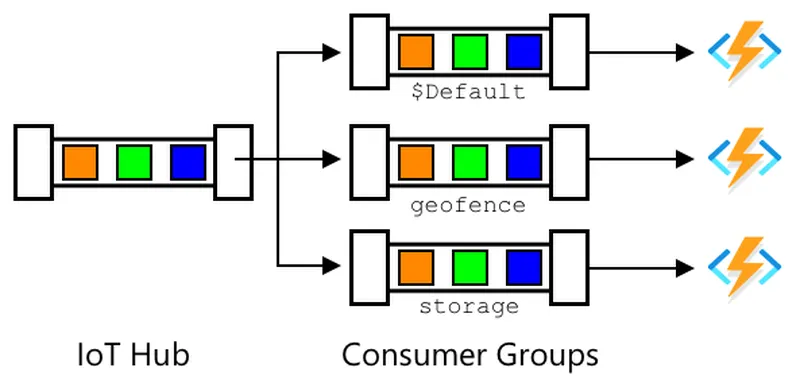
In theory up to 5 applications can connect to each consumer group, and they will all receive messages when they arrive. It's best practice to have only one application access each consumer group to avoid duplicate message processing, and ensure when restarting all queued messages are processed correctly. For example, if you launched your Functions app locally as well as running it in the cloud, they would both process messages, leading to duplicate blobs stored in the storage account.
If you review the function.json 文件中可以看到IoT Hub触发器绑定部分的消费者组:
"consumerGroup": "$Default"
创建IoT Hub时,您会得到 $Default consumer group created by default. If you want to add an additional trigger, you can add this using a new consumer group.
In this lesson, you will use a different function to test the geofence to the one used to store the GPS data. This is to show how to use consumer groups and separate the code to make it easier to read and understand. In a production application there are many ways you might architect this - putting both on one function, using a trigger on the storage account to run a function to check the geofence, or using multiple functions. There is no 'right way', it depends on the rest of your application and your needs.
Task - create a new consumer group
-
Run the following command to create a new consumer group called
geofence作为您的IoT Hub:az iot hub consumer-group create --name geofence \ --hub-name <hub_name>替换
<hub_name>为您使用的IoT Hub名称。 -
如果想查看IoT Hub的所有消费者组,运行以下命令:
az iot hub consumer-group list --output table \ --hub-name <hub_name>替换
<hub_name>为您使用的IoT Hub名称。这将列出所有消费者组。Name ResourceGroup -------- --------------- $Default gps-sensor geofence gps-sensor
在之前的课程中,当您运行IoT Hub事件监视器时,它连接到了
$Defaultconsumer group. This was why you can't run the event monitor and an event trigger. If you want to run both, then you can use other consumer groups for all your function apps, and keep$Defaultfor the event monitor.
Task - create a new IoT Hub trigger
-
Add a new IoT Hub event trigger to your
gps-triggerfunction app that you created in an earlier lesson. Call this functiongeofence-trigger.⚠️ You can refer to the instructions for creating an IoT Hub event trigger from project 2, lesson 5 if needed.
-
Configure the IoT Hub connection string in the
function.jsonfile. Thelocal.settings.jsonis shared between all triggers in the Function App. -
Update the value of the
consumerGroupin thefunction.jsonfile to reference the newgeofence消费者组:"consumerGroup": "geofence" -
您需要在此触发器中使用您的Azure Maps帐户的订阅密钥,因此向
local.settings.jsonfile calledMAPS_KEY. -
Run the Functions App to ensure it is connecting and processing messages. The
iot-hub-trigger添加一个新条目:为了避免重复的GPS读数存储在blob存储中,您可以停止在云中运行的Functions App。为此,请使用以下命令:
az functionapp stop --resource-group gps-sensor \ --name <functions_app_name>替换
<functions_app_name>为您使用的Functions App名称。您稍后可以使用以下命令重新启动它:
az functionapp start --resource-group gps-sensor \ --name <functions_app_name>替换
<functions_app_name>with the name you used for your Functions App.
Task - test the geofence from the trigger
Earlier in this lesson you used curl to query a geofence to see if a point was located inside or outside. You can make a similar web request from inside your trigger.
-
To query the geofence, you need its UDID. Add a new entry to the
local.settings.jsonfile calledGEOFENCE_UDIDwith this value. -
Open the
__init__.pyfile from the newgeofence-trigger触发器。 -
向文件顶部添加以下导入:
import json import os import requests在
main方法中获取Maps订阅密钥:maps_key = os.environ['MAPS_KEY'] geofence_udid = os.environ['GEOFENCE_UDID'] -
在
for event in events循环内部,添加以下代码以从每个事件中获取纬度和经度:event_body = json.loads(event.get_body().decode('utf-8')) lat = event_body['gps']['lat'] lon = event_body['gps']['lon']这段代码将事件主体中的JSON转换为字典,然后提取
latandlonfrom thegpsfield. -
When using
requests,而不是像您之前使用curl那样构建一个长URL,您可以只使用URL部分并将参数作为字典传递。添加以下代码以定义要调用的URL并配置参数:url = 'https://atlas.microsoft.com/spatial/geofence/json' params = { 'api-version': 1.0, 'deviceId': 'gps-sensor', 'subscription-key': maps_key, 'udid' : geofence_udid, 'lat' : lat, 'lon' : lon }params字典中的项将与通过curl调用Web API时使用的键值对匹配。 -
添加以下代码行以调用Web API:
response = requests.get(url, params=params) response_body = json.loads(response.text)这将使用参数调用URL,并获取响应对象。
-
在此之下添加以下代码:
distance = response_body['geometries'][0]['distance'] if distance == 999: logging.info('Point is outside geofence') elif distance > 0: logging.info(f'Point is just outside geofence by a distance of {distance}m') elif distance == -999: logging.info(f'Point is inside geofence') else: logging.info(f'Point is just inside geofence by a distance of {distance}m')此代码假设一个几何图形,并从单一几何图形中提取距离。然后根据距离记录不同的消息。
-
运行此代码。您将在日志输出中看到GPS坐标是否在地理围栏内或外,如果点在50米范围内,则会显示距离。尝试使用不同基于GPS传感器位置的地理围栏测试此代码,尝试移动传感器(例如通过WiFi连接的手机或虚拟IoT设备的不同坐标)以观察变化。
-
准备好后,将此代码部署到云中的Functions应用中。别忘了部署新的应用程序设置。
⚠️ 如果需要,可以参考 第2课、第5课的上传应用程序设置的说明。
⚠️ 如果需要,可以参考 第2课、第5课的部署Functions应用到云中的说明。
您可以在 code/functions 文件夹中找到此代码。
--- ## 挑战 在本课中,您使用一个包含单个多边形的GeoJSON文件添加了一个地理围栏。您可以同时上传多个多边形,只要它们有不同的geometryIdvalues in theproperties部分。尝试上传包含多个多边形的GeoJSON文件,并调整您的代码以找到GPS坐标最接近或在哪个多边形内。 ## 课后测验 课后测验 ## 复习与自学 * 阅读更多关于地理围栏及其一些使用案例的内容,请访问 地理围栏页面。
Wikipedia. * 在 Microsoft Azure Maps Spatial - 获取地理围栏文档 中了解有关 Azure Maps 地理围栏 API 的更多信息。* 在 Microsoft 文档中的 Azure 事件中心的功能和术语 - 事件消费者文档 中了解有关消费者组的更多信息。## 任务 使用 Twilio 发送通知
声明:
本文件灏天文库团队进行了翻译。尽管我们力求准确,但请注意,翻译可能包含错误或不准确之处。原文档以其原始语言为准。我们不对因使用此翻译而产生的任何误解或误译负责。