第 11 章 Web 界面与客户端
prev: text: '第10章 安全防护与威胁模型' link: '/cn/adopt/chapter10' next: text: '附录 A:学习资源汇总' link: '/cn/appendix/appendix-a'
第十一章 Web 界面与客户端
终端太硬核?本章介绍龙虾的各种图形界面——网页版、桌面版、终端 UI,总有一款适合你。
前置条件:已完成第二章 OpenClaw 手动安装,Gateway 正常运行。
0. 选一款你喜欢的方式
四种原生界面,全部连接同一个 Gateway,可以随意切换或同时使用:
| 界面 | 怎么打开 | 一句话描述 | 平台 |
|---|---|---|---|
| Dashboard | openclaw dashboard |
管理配置、查对话历史的控制台 | 全平台 |
| WebChat | 浏览器访问 Gateway 地址 | 零配置,开箱即聊 | 全平台 |
| Control UI | 打开 OpenClaw.app | macOS 原生桌面体验 | macOS |
| TUI | openclaw tui |
终端里直接聊,最轻量 | 全平台 |
不知道选哪个? 想管配置 → Dashboard;想聊天 → WebChat;macOS 用户 → Control UI;SSH 远程 → TUI。
1. Web Dashboard(控制面板)
Dashboard 是 OpenClaw 的主力管理界面,运行在浏览器里,涵盖配置、历史对话、渠道状态、技能、定时任务等一切。
启动
openclaw dashboard
浏览器自动打开 http://localhost:18789,没自动打开就手动输入这个地址。
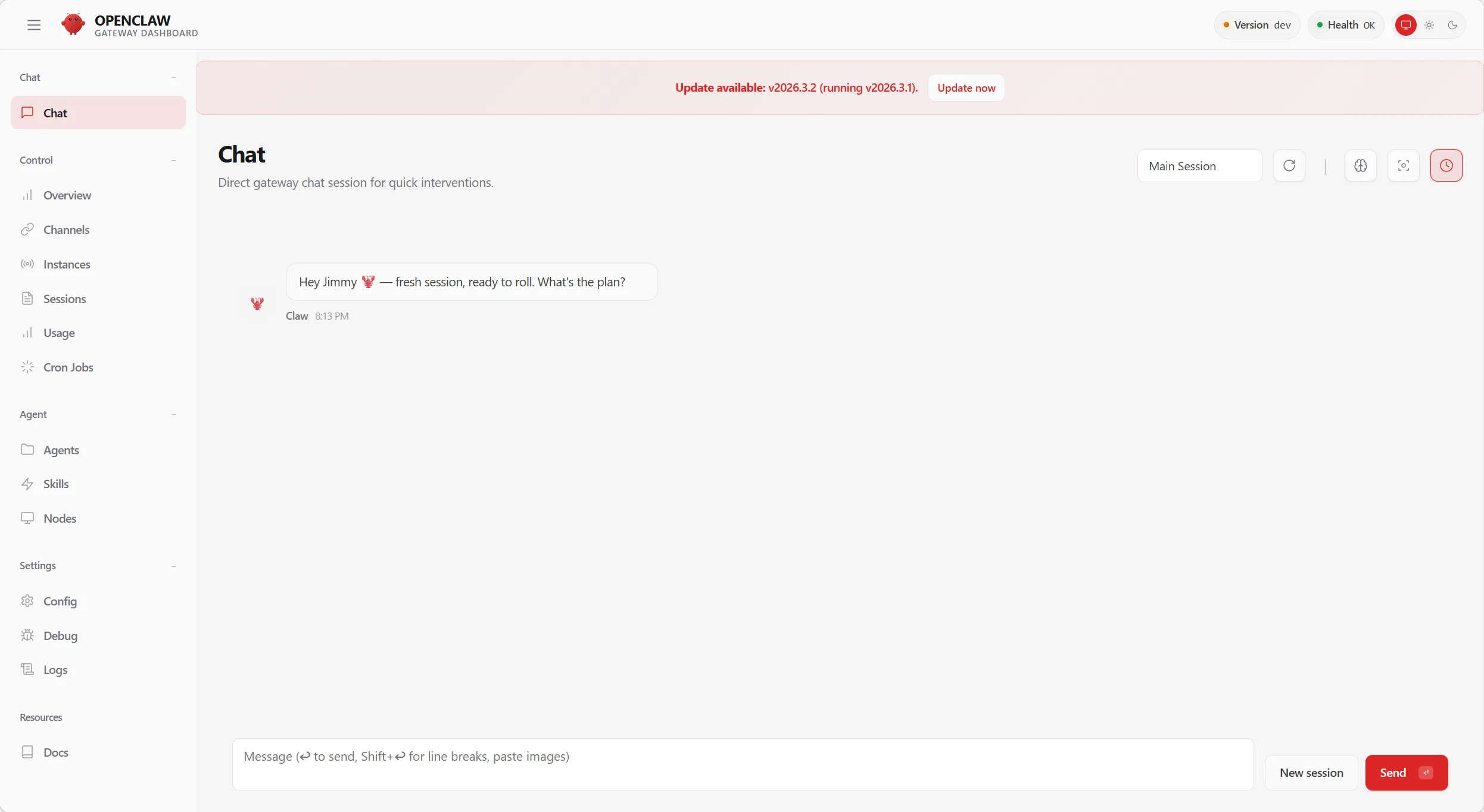
Dashboard 各功能区一览
| 功能区 | 说明 |
|---|---|
| Config | 可视化编辑配置,保存即生效 |
| Conversations | 查看对话历史、消息详情、工具调用记录 |
| Channels | 查看已连接渠道的状态 |
| Sessions | 管理活跃会话和上下文 |
| Skills | 浏览和管理已安装的技能 |
| Cron | 查看和管理定时任务 |
| Logs | 实时查看 Gateway 日志流 |
Config 标签页提供可视化配置编辑器,和 openclaw config set <key> <value> 效果完全一样(详见第八章 配置管理)。
远程访问
Gateway 在远程服务器上时,用 SSH 隧道把端口转到本地(详见第九章 远程访问):
# 在本地电脑执行 ssh -N -L 18789:127.0.0.1:18789 user@远程服务器 # 然后浏览器打开 http://localhost:18789
Dashboard 认证
如果 Gateway 配置了认证(token 或 password 模式),打开 Dashboard 时会要求输入凭证:
- Token 模式:输入
OPENCLAW_GATEWAY_TOKEN环境变量的值 - Password 模式:输入
OPENCLAW_GATEWAY_PASSWORD环境变量的值 - Tailscale 模式:如果启用了
allowTailscale: true,从 Tailscale 网络内访问无需密码
// 认证配置示例 { gateway: { auth: { mode: "token", // token | password token: "${OPENCLAW_GATEWAY_TOKEN}", allowTailscale: true, // Tailscale 设备免认证 }, }, }
安全提醒:Dashboard 拥有完整的管理权限。务必设置认证,尤其是 Gateway 不在 loopback 上运行时(详见第十章 安全防护)。
更改 Dashboard 端口
如果默认端口 18789 与其他服务冲突:
{ gateway: { port: 19000, // 改为其他端口 }, }
或启动时指定:
openclaw gateway --port 19000
改完后 Dashboard 地址变为 http://localhost:19000。
2. WebChat(内置 Web 聊天)
Gateway 内置的聊天界面,零配置、开箱即用——不需要注册任何平台账号。
打开
浏览器访问 http://localhost:18789,或在 Dashboard 中点击 Chat 入口。
WebChat 最适合首次测试和技能调试。发送 /status 可快速检查 Gateway 状态。
WebChat 与 Telegram / Discord 怎么选?
| 对比维度 | WebChat | Telegram | Discord |
|---|---|---|---|
| 注册要求 | 无 | 需创建 Bot | 需创建 Bot |
| 公网要求 | 不需要 | Webhook 需要 | 不需要 |
| 移动端 | 浏览器访问 | 原生 App | 原生 App |
| 群聊 | 不支持 | 支持 | 支持 |
| 消息推送 | 需保持页面打开 | 系统通知 | 系统通知 |
需要手机推送或群聊,搭配 Telegram 或 Discord(详见第四章)。
第三方 Web 聊天客户端
社区客户端(如 PinchChat:github.com/pinchchat/pinchchat)通过 Gateway 的 HTTP API 与 OpenClaw 通信。使用前需启用端点:
{ gateway: { http: { endpoints: { chatCompletions: { enabled: true }, }, }, }, }
将客户端 API 地址指向 http://127.0.0.1:18789/v1/chat/completions,以 Gateway 认证 token 作为 API Key(详见第八章 HTTP API 端点)。
3. Control UI(macOS 桌面客户端)
macOS 专属的原生桌面应用(OpenClaw.app):菜单栏常驻、原生通知、无需终端即可管理 Gateway。
安装
通过 AutoClaw 安装时通常已包含。也可单独安装:
brew install --cask openclaw
在「应用程序」中找到 OpenClaw.app,双击打开。
连接远程 Gateway
Settings → General → "OpenClaw runs" → 选 Remote over SSH → 填入服务器地址。App 自动管理 SSH 隧道,WebChat 开箱即用(详见第九章 远程访问)。
Control UI 和 Dashboard 有什么区别?
| 对比维度 | Control UI | Dashboard |
|---|---|---|
| 平台 | 仅 macOS | 全平台(浏览器) |
| 安装 | 需下载 App | Gateway 内置 |
| 系统集成 | 菜单栏、通知、快捷键 | 无 |
| 远程连接 | 内置 SSH 管理 | 需手动建隧道 |
| 推荐人群 | macOS 重度用户 | 跨平台、远程管理 |
两者可以同时用——Control UI 管理 Gateway 生命周期,Dashboard 做细粒度配置。
4. TUI(终端聊天)
不需要浏览器,不需要 GUI,直接在终端里聊。SSH 远程、服务器、Docker 容器——任何有终端的地方都能用。
启动
openclaw tui
交互模式,输入消息回车发送。或者单次发送:
openclaw agent --message "帮我写一个 Python hello world"
TUI 进阶用法:指定 Agent、管道输入
指定思考级别:
openclaw agent --message "分析这段代码的安全性" --thinking high
指定 Agent(多 Agent 配置详见附录 G):
openclaw agent --message "查看今天的日程" --agent home openclaw agent --message "审查这个 PR" --agent work
管道输入:
# 让龙虾解释一段代码 cat script.py | openclaw agent --message "解释这段代码" # 让龙虾分析日志 openclaw logs --limit 50 --plain | openclaw agent --message "有什么异常?"
5. 界面选择指南
| 你想做什么 | 推荐 |
|---|---|
| 第一次安装,确认龙虾能用 | openclaw tui |
| 日常管理配置 | Dashboard |
| 在浏览器里聊天 | WebChat |
| SSH 远程聊天 | openclaw tui |
| macOS 全功能体验 | Control UI |
| 调试技能 | WebChat + Dashboard(查工具调用) |
| 脚本里调用龙虾 | openclaw agent --message |
| macOS 桌面 | Control UI + Dashboard |
| Windows / Linux 桌面 | Dashboard + WebChat |
| 云服务器 / Docker | TUI |
| 手机 / 平板 | WebChat(浏览器) |
四种界面连接同一个 Gateway,可以同时用——WebChat 里的对话在 Dashboard 的 Conversations 里也能查到。
6. 常见问题
Dashboard 显示连接失败?
先确认 Gateway 在跑:openclaw gateway status,没跑就 openclaw gateway restart。
端口 18789 被占用?
# macOS / Linux ss -tlnp | grep 18789 # Windows netstat -ano | findstr 18789
换端口方法见上文"更改 Dashboard 端口"折叠块。
WebChat 发消息没有回复?
依次检查:① openclaw status 确认 Gateway 和 Agent 正常;② openclaw logs --follow 发一条消息看有无报错;③ 确认 API Key 有效(详见第五章)。
远程服务器上能用 WebChat 吗?
可以。SSH 隧道后在本地浏览器访问 http://localhost:18789;Tailscale 用户直接用 Tailscale IP 访问(详见第九章)。
Control UI 只有 macOS?
是的。Windows / Linux 用户用 Dashboard,或社区桌面客户端 ClawX。