Unity脚本编程
文档摘要
Unity 脚本编程 目标 解释 Unity 脚本的组成部分。 评估 Null 引用异常的问题。 评估适合应用逻辑的类或类组合。 简介 Unity 使用 C# 作为其主要语言,虽然不是每次创建 XR 经验都需要,但它为开发者提供了修改或改变对象、它们的行为和交互等的机会。这是通过称为脚本的代码片段实现的。 游戏对象的行为由附加到它们的组件控制。尽管 Unity 的内置组件非常灵活,但很快你就会发现你需要超越它们所提供的功能来实现自己的功能。Unity 允许你使用脚本创建自己的组件。这些脚本可以让你触发游戏事件、随着时间改变组件属性,并以你喜欢的任何方式响应用户输入。脚本通常直接在 Unity 中创建。脚本中的代码不会激活,直到脚本的一个实例被附加到一个游戏对象上作为一个组件。
Unity 脚本编程
目标
- 解释 Unity 脚本的组成部分。
- 评估 Null 引用异常的问题。
- 评估适合应用逻辑的类或类组合。
简介
Unity 使用 C# 作为其主要语言,虽然不是每次创建 XR 经验都需要,但它为开发者提供了修改或改变对象、它们的行为和交互等的机会。这是通过称为脚本的代码片段实现的。
游戏对象的行为由附加到它们的组件控制。尽管 Unity 的内置组件非常灵活,但很快你就会发现你需要超越它们所提供的功能来实现自己的功能。Unity 允许你使用脚本创建自己的组件。这些脚本可以让你触发游戏事件、随着时间改变组件属性,并以你喜欢的任何方式响应用户输入。脚本通常直接在 Unity 中创建。脚本中的代码不会激活,直到脚本的一个实例被附加到一个游戏对象上作为一个组件。
Visual Studio 是 Unity 首选的集成开发环境(IDE)。当通过编辑器打开脚本时,Unity 会启动 Visual Studio。Unity 还支持 Visual Studio Code 和 JetBrains Rider。
脚本文件结构
文件初始内容看起来类似于以下内容:
using UnityEngine; using System.Collections; public class MainPlayer : MonoBehaviour { // Use this for initialization void Start () { } // Update is called once per frame void Update () { } }
A script makes its connection with the internal workings of Unity by implementing a class which derives from the built-in class called MonoBehaviour. You can think of a class as a kind of blueprint for creating a new Component type that can be attached to GameObjects. Each time you attach a script component to a GameObject, it creates a new instance of the object defined by the blueprint. The name of the class is taken from the name you supplied when the file was created. The class name and file name must be the same to enable the script component to be attached to a GameObject.
The main things to note, however, are the two functions defined inside the class. The Update() function is the place to put code that will handle the frame update for the GameObject. This might include movement, triggering actions and responding to user input, basically anything that needs to be handled over time during app play. To enable the Update function to do its work, it is often useful to be able to set up variables, read preferences and make connections with other GameObjects before any game action takes place. The Start() function is called by Unity before the app begins (i.e., before the Update function is called for the first time) and is an ideal place to do any initialization.
Variables and the Inspector
When creating a script, you are essentially creating your own new type of component that can be attached to a GameObject just like any other component.
Just like other Components often have properties that are editable in the Inspector, you can allow values in your script to be edited from the Inspector, too.
For example, the code below enables you to set the value for myName directly in the Editor and output the log message within the Console.
using UnityEngine; using System.Collections; public class MainPlayer : MonoBehaviour { public string myName; // 用于初始化 void Start () { Debug.Log("我的名字是 " + myName); } }
Once attached to a GameObject, editable fields are created within the script properties and labelled by the variable name.
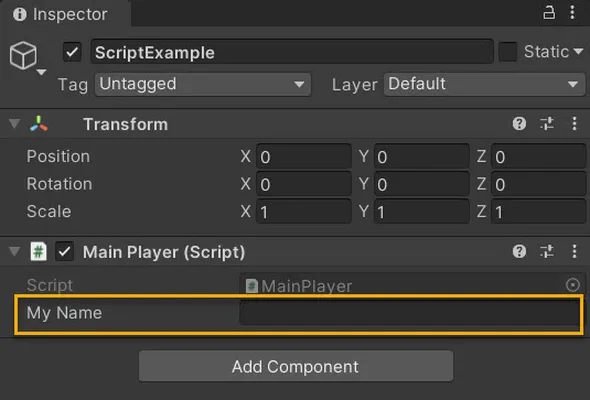
In C#, the simplest way to see a variable in the Inspector is to declare it as public. An alternative method is to use SerializeField. Conversely, you can use HideInInspector to prevent a public variable from being displayed in the Inspector.
Unity will actually let you change the value of a script’s variables while in Play mode. This is very useful for seeing the effects of changes directly without having to stop and restart. When you exit Play mode, the values of the variables will be reset to whatever they were before you pressed Play. This ensures that you are free to tweak your object’s settings without fear of doing any permanent damage.
Instantiating Prefabs at run time
Prefabs come in handy when you want to instantiate complicated GameObjects or collections of GameObjects at run time. Compared with creating GameObjects from scratch using code, instantiating Prefabs using code has many advantages because you can:
- Instantiate a Prefab using one line of code. Creating equivalent GameObjects from scratch requires many more lines of code.
- Set up, test, and modify the Prefab quickly and easily using the Scene view, Hierarchy and Inspector.
- Change which Prefab is instantiated without changing the code.
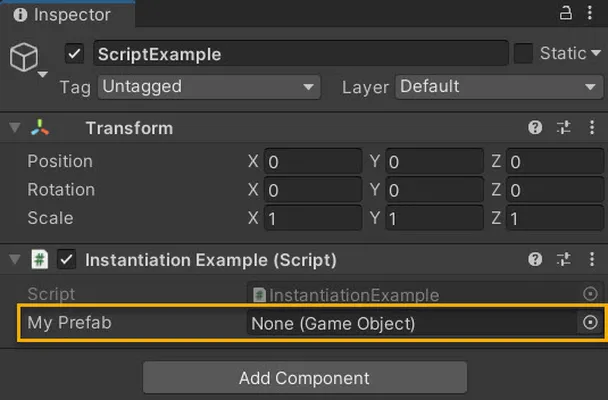
To instantiate a Prefab at run time, your code needs a reference to that Prefab. You can make this reference by creating a public variable in your code to hold the Prefab reference. The public variable in your code appears as an assignable field in the Inspector. You can then assign the actual Prefab you want to use in the Inspector.
The script example below has a single public variable, myPrefab, that is a reference to a Prefab. It creates an instance of that Prefab in the Start() method.
using UnityEngine; public class InstantiationExample : MonoBehaviour { // 对象预制体引用。将一个预制体拖放到此字段中。 public GameObject myPrefab; // 此脚本将在游戏开始时实例化预制体。 void Start() { // 在位置 (0, 0, 0) 和零旋转处实例化。 Instantiate(myPrefab, new Vector3(0, 0, 0), Quaternion.identity); } }
In the Inspector, the Prefab assigned to myPrefab appears at runtime.
Order of execution for event functions
Running a Unity script executes a number of event functions in a predetermined order:
Event functions
A script in Unity is not like the traditional idea of a program where the code runs continuously in a loop until it completes its task. Instead, Unity passes control to a script intermittently by calling certain functions that are declared within it. Once a function has finished executing, control is passed back to Unity. These functions are known as event functions since they are activated by Unity in response to events that occur during app play. The following are some of the most common and important events.
Regular Update Events
These events make changes to position, state, and behavior of objects in an app before each frame is rendered. The Update() function is called before the frame is rendered and also before animations are calculated.
The physics engine also updates in discrete time steps in a similar way to the frame rendering. A separate event function called FixedUpdate() is called just before each physics update. Since the physics updates and frame updates do not occur with the same frequency, you will get more accurate results from physics code if you place it in the FixedUpdate() function rather than Update().
It is also useful sometimes to be able to make additional changes at a point after the Update and FixedUpdate functions have been called for all objects in the scene and after all animations have been calculated. An example is where a camera should remain trained on a target object; the adjustment to the camera’s orientation must be made after the target object has moved.
Initialization Events
It is often useful to be able to call initialization code in advance of any updates that occur during app play. The Start() function is called before the first frame or physics update on an object. The Awake() function is called for each object in the scene at the time when the scene loads. Note that although the various objects’ Start() and Awake() functions are called in arbitrary order, all the Awakes will have finished before the first Start() is called. This means that code in a Start() function can make use of other initializations previously carried out in the Awake() phase.
Physics Events
The physics engine will report collisions against an object by calling event functions on that object’s script. The OnCollisionEnter(), OnCollisionStay() and OnCollisionExit() functions will be called as contact is made, held and broken. The corresponding OnTriggerEnter(), OnTriggerStay() and OnTriggerExit() functions will be called when the object’s collider is configured as a Trigger (i.e, a collider that detects when something enters it rather than reacting physically). These functions may be called several times in succession if more than one contact is detected during the physics update and so a parameter is passed to the function giving details of the collision (position, identity of the incoming object, etc).
Coroutines
A coroutine allows you to spread tasks across several frames. In Unity, a coroutine is a method that can pause execution and return control to Unity but then continue where it left off on the following frame. In most situations, when you call a method, it runs to completion and then returns control to the calling method, plus any optional return values. This means that any action that takes place within a method must happen within a single frame update. In situations where you would like to use a method call to contain a procedural animation or a sequence of events over time, you can use a coroutine.
It’s best to use coroutines if you need to deal with long asynchronous operations, such as waiting for HTTP transfers, asset loads, or file I/O to complete.
Null Reference Exceptions
A NullReferenceException happens when you try to access a reference variable that isn’t referencing any object. When you get a NullReferenceException in your code it means that you have forgotten to set a variable before using it. If a reference variable isn’t referencing an object, then it’ll be treated as null. The error message will look something like:
NullReferenceException: 对象引用未设置到对象实例。 at Example.Start () [0x0000b] in /Unity/projects/nre/Assets/Example.cs:8
This error message says that a NullReferenceException happened on line 8 of the script file Example.cs. Also, the message says that the exception happened inside the Start() function. This makes the Null Reference Exception easy to find and fix.
In this example, the code is:
using UnityEngine; using System.Collections; public class Example : MonoBehaviour { // 用于初始化 void Start () { __GameObject__ go = GameObject.Find("wibble"); Debug.Log(go.name); } }
The code looks for a GameObject called “wibble”. In this example there is no game object with that name, so the Find() function returns null. On the next line (line 9) we use the go variable and try and print out the name of the GameObject it references. Because we are accessing a GameObject that doesn’t exist, the run-time gives us a NullReferenceException.
Consider implementing a conditional statement within the script for null checks. In the code example, the script first checks whether the variable go is not null. If it is null, then a message displays.
using UnityEngine; using System.Collections; public class Example : MonoBehaviour { void Start () { GameObject go = GameObject.Find("wibble"); if (go) { Debug.Log(go.name); } else { Debug.Log("未找到名为 wibble 的游戏对象"); } } }
Another cause for NullReferenceException is if you use a variable that should be initialized in the Inspector and forget to do so. The variable will be null. In the following code example, the variable called myLight is a Light which should be set in the Inspector window.
If this variable is not set, then it will default to null. Consider implementing a try/catch block within the script for such null checks. Attempting to change the color of the light in the try block causes a NullReferenceException which is picked up by the catch block. The catch block displays a message that alludes to the corrective action.
Important Classes
Below is a list of the most commonly used and important built-in classes in Unity that you may want to use when scripting:
| Class | Description |
|---|---|
GameObject |
Represents the type of objects which can exist in a Scene. |
MonoBehaviour |
The base class from which every Unity script derives, by default. |
Object |
The base class for all objects that Unity can reference in the editor. |
Transform |
Provides you with a variety of ways to work with a GameObject’s position, rotation and scale via script, as well as its hierarchical relationship to parent and child GameObjects. |
Vectors |
Classes for expressing and manipulating 2D, 3D, and 4D points, lines and directions. |
Quaternion |
A class which represents an absolute or relative rotation, and provides methods for creating and manipulating them. |
ScriptableObject |
A data container that you can use to save large amounts of data. |
Time (and framerate management) |
Allows you to measure and control time, and manage the framerate of your project. |
Mathf |
A collection of common math functions, including trigonometric, logarithmic, and other functions commonly required in games and app development. |
Random |
Provides you with easy ways of generating various commonly required types of random values. |
Debug |
Allows you to visualize information in the Editor that may help you understand or investigate what is going on in your project while it is running. |
Gizmos and Handles |
允许你在场景视图和游戏视图中绘制线条和形状,以及交互式句柄和控件。 |
课后测验
复习与自学
我们已经确定了以下资源,以提供有关本课程所涵盖内容的额外背景和学习材料。我们鼓励您复习下面的材料并探索其他相关主题。
声明:
本文件灏天文库团队进行了翻译。尽管我们力求准确,但请注意,翻译可能包含错误或不准确之处。原文档以其原始语言为准。我们不对因使用此翻译而产生的任何误解或误译负责。